
How can we help?
Group Status Screen
Objective:
Explain what a user is seeing on the Group Status Screen.
Rights Needed:
☐Admin ☐ Admin Lite ☐Well Admin ☐Well Control
☐Well Config ☐Well Config Lite ☒Read Only
Versions:
XSPOC: 3.1, 3.2
Purpose:
The Group Status Window displays the current status of the wells that are in the selected group. This window, which is laid out in a spreadsheet view, is used to get a quick visual overview of the current operation of the wells.
Instruction:

- Open the XPOC Client
- From the navigation panel locate and select the Group Tab
- Click Group Tab > Group Status Icon
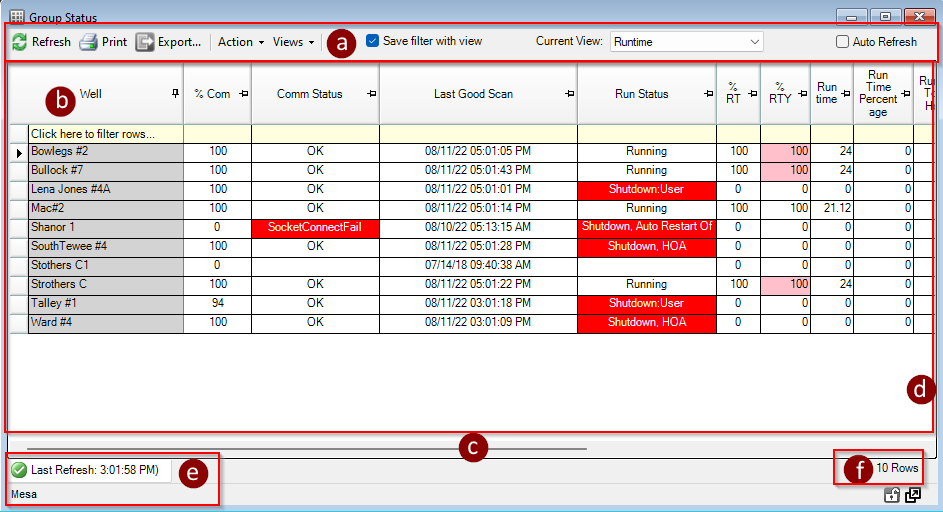
- The Group Status View window opens and displays the following:
- Tool Bar along the top of the window
- Refresh – will refresh the screen with any new data from the last time it was scanned
- Print – will send the view to a printer
- Export – will export the view to save as a file
- Action – a drop down pick list menu with various actions that can be performed on a select well or group of wells, if the user has the appropriate rights. Only the actions in bold type can be performed by the current user. Grayed out options are not available to the current user.
- Views – a drop down pick list allowing the user to perform the following actions:
- Customize – add columns to the view
- Save As – save the view in XSPOC for the user’s use only.
- Associate Views With groups – associate the view to display when ever the associated group is opened in XSPOC
- Delete Views = delete the current user views only
- Save Filter with view – saves the view with any filter applied by the user
- Current View – a drop down list with the views that a user may select
- Auto Refresh – when checked automatically refreshes the view every minute and displays any new data since the last time the view was displayed, if it exists from the last good scan.
- Child Group Status View Window
- Columns along the top
- Well list in the first column on the left
- Data displayed from the last good scan
- Comm status from the last comm attempt
- Bottom of the screen – displays a scroll bar to scroll left and right if the view contains more columns than the window can display
- Right Side of the screen – displays a scroll bar to scroll up and own if the view contains more assets, then the window can display.
- Bottom left of the screen
- Last Refresh Time Stamp
- Asset Current selected in the Group Status View
- Bottom right of the screen – displays the number of rows in the view, representing the number of assets in the view
- Tool Bar along the top of the window
- On the very bottom right there are two window control icons.
- The lock icon allows the user to lock the screen,
- The arrow icon allows the use to float the window and move it to other screens or areas of the same computer screen.