How can we help?
Asset Status Screen – Rod Lift
Objective:
Explain what a user is seeing on the Asset Status Screen
Rights Needed:
☐Admin ☐ Admin Lite ☐Well Admin ☐Well Control
☐Well Config ☐Well Config Lite ☒Read Only
Versions:
XSPOC: 3.1, 3.2
Purpose:
Designed to give the user a snapshot of the current configuration and operating status of the asset. The screen schematic and information vary depending on the artificial lift type (Rod Pump, ESP, Gas Lift, Plunger Lift, PCP, Facility, EFM, Jet Pump, Chemical Injection). This section covers the Rod Lift Screen.
Instruction:

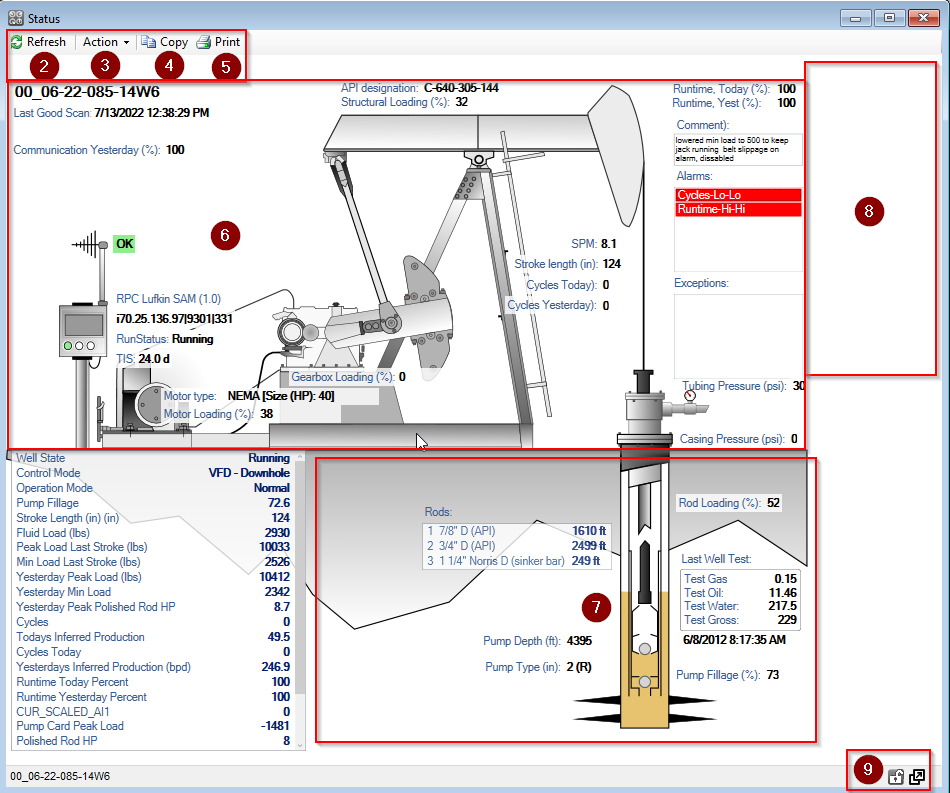
- Click Asset Tab> Status Icon
- Refresh-updates the screen
- Action – sends commands to the asset and can enable or disable the well for communications in XSPOC. (Note: Enable and Disable does not affect the operation of the well. They only determine if XSPOC will try and scan the well or not scan the well.)
- Scan
- Start Well
- Idle Well
- Clear Alarms
- Reset Clocks
- Mode – Changes the Run Mode
- Constant Run
- % Timer
- POC
- Enable
- Disable
- Copy – Copies the Screen for export
- Print – Prints the screen to a designated printer
- Asset Status Screen Overview – Current snapshot of the asset status
- Asset Name
- Communication Information
- Pumping Unit Information
- Runtime information
- Controller Type, address, and status
- Pumping Unit Schematic with SPM, Stroke Length and Cycles
- Comment box – user entry
- Alarms Box – current Alarms and Alarm Status
- Exceptions – based on Exception Groups
- Tubing, Casing and Flowline pressures – if available
- Status Registers box – user configuration
- Downhole Equipment – currently in XSPOC
- Last Well Test – if available
- Downhole fluid and fillage information – From the Controller
- Camera – view camera if available
- On the bottom right there are two window control icons.
- The lock icon allows the user to lock the screen,
- The arrow icon allows the use to float the window and move it to other screens or areas of the same computer screen.