
How can we help?
-
Asset
-
-
- Articles coming soon
-
- Articles coming soon
-
Facilities
-
Failures
-
- Articles coming soon
-
-
Group
-
Help
-
- Articles coming soon
-
- Articles coming soon
-
- Articles coming soon
-
- Articles coming soon
- Articles coming soon
-
-
Main Client Window
-
- Articles coming soon
-
- Articles coming soon
-
- Articles coming soon
-
- Articles coming soon
-
-
Scoreboard
-
- Articles coming soon
-
- Articles coming soon
-
- Articles coming soon
-
- Articles coming soon
-
-
Tools
-
-
- Articles coming soon
-
-
Window
-
- Articles coming soon
-
- Articles coming soon
-
- Articles coming soon
- Articles coming soon
-
Configure Screen
Posted
Updated
ByTheta Team
Print Objective:
To explain what the user sees in the Configure Section of the Tools Tab.
Rights Needed:
☐Admin ☐ Admin Lite ☐Well Admin ☐Well Control
☐Well Config ☐Well Config Lite ☒Read Only
Versions:
XSPOC: 3.1, 3.2
Purpose:
Familiarize users with the Tools>Configure Section
Instruction:

- Open the XPOC Client
- From the navigation panel locate and select the Tools Tab
- Click Tools Tab > Configure Icon
- A window opens that displays the following.
- On the Top left is a drop-down pick list of the available Theta Stand Alone products that you can view in the XSPOC client if your company has purchased this software. The Stand Alone software is comprised of different design software products.
- Click on the Browse Icon to navigate to where the desired product’s .exe file is installed, if it is installed.
- On the top right of the window is a button that will display:
- Add – if adding a product for the first time
- Update – if updating the .exe file location.
- The center section will display the Application and the path to the application .exe file.
- On the bottom right you will see the following:
- Remove – allows the user to remove an already configured product
- Save – allows the user to save any changes
- Close – closes the dialogue window
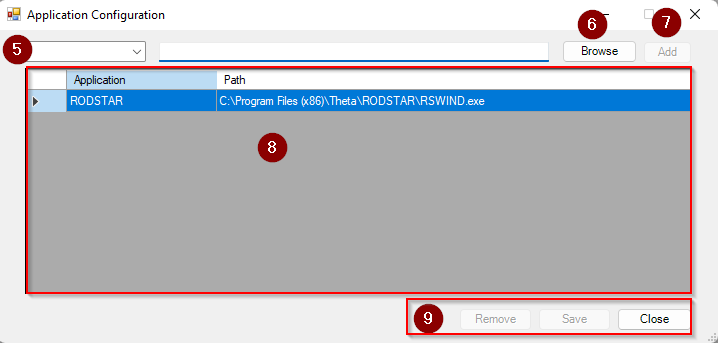
Table of Contents