
How can we help?
-
Asset
-
-
- Articles coming soon
-
- Articles coming soon
-
Facilities
-
Failures
-
- Articles coming soon
-
-
Group
-
Help
-
- Articles coming soon
-
- Articles coming soon
-
- Articles coming soon
-
- Articles coming soon
- Articles coming soon
-
-
Main Client Window
-
- Articles coming soon
-
- Articles coming soon
-
- Articles coming soon
-
- Articles coming soon
-
-
Scoreboard
-
- Articles coming soon
-
- Articles coming soon
-
- Articles coming soon
-
- Articles coming soon
-
-
Tools
-
-
- Articles coming soon
-
-
Window
-
- Articles coming soon
-
- Articles coming soon
-
- Articles coming soon
- Articles coming soon
-
New Asset Screen
Posted
Updated
ByTheta Team
Print Objective:
Explain what a user is seeing on the Asset >New Asset Screen.
Rights Needed:
☐Admin ☐ Admin Lite ☒Well Admin ☐Well Control
☐Well Config ☐Well Config Lite ☐Read Only
Versions:
XSPOC: 3.1, 3.2
Purpose:
The New Asset screen allows a user with Well Admin rights to add a new asset to XSPOC.
Instruction:

- Open XPOC Client
- From the navigation panel locate and select the Asset Tab
- Click Asset Tab>New Asset Icon
- The New Asset Screen opens and displays the following:
- Name – enter the new asset name
- Clone From – select another asset if desired
- Include Surface and Downhole Equipment Checkbox
- Include Facility Tags Checkbox
- Include Host Alarms Checkbox
- Controller
- Type – select controller drop
- Port – select desired port
- Address – enter address to communicate with the asset
- Enable – check to enable for communications in XSPOC
- Create – creates the asset
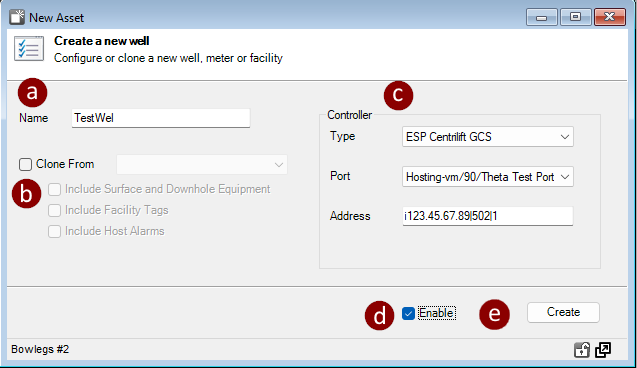
- On the bottom right there are two window control icons.
- The lock icon allows the user to lock the screen,
- The arrow icon allows the use to float the window and move it to other screens or areas of the same computer screen.

Table of Contents