
How can we help?
-
Asset
-
-
- Articles coming soon
-
- Articles coming soon
-
Facilities
-
Failures
-
- Articles coming soon
-
-
Group
-
Help
-
- Articles coming soon
-
- Articles coming soon
-
- Articles coming soon
-
- Articles coming soon
- Articles coming soon
-
-
Main Client Window
-
- Articles coming soon
-
- Articles coming soon
-
- Articles coming soon
-
- Articles coming soon
-
-
Scoreboard
-
- Articles coming soon
-
- Articles coming soon
-
- Articles coming soon
-
- Articles coming soon
-
-
Tools
-
-
- Articles coming soon
-
-
Window
-
- Articles coming soon
-
- Articles coming soon
-
- Articles coming soon
- Articles coming soon
-
Host Alarms Screen
Posted
Updated
ByTheta Team
Print Objective:
Explain what a user is seeing on the Host Alarms Screen.
Rights Needed:
☐Admin ☐ Admin Lite ☐Well Admin ☐Well Control
☐Well Config ☐Well Config Lite ☒Read Only
Versions:
XSPOC: 3.1, 3.2
Purpose:
Define the purpose of the document. Example: Familiarize teams and users with the standard interface options
Instruction:

- Open XPOC Client
- From the navigation panel locate and select the Asset Tab
- Click Asset>Host Alarms
- The Host Alarms Screen opens, and it contains the following:
- Two Tool Icons along the top
- Cancel
- Replicate Selected Alarms
- Two Tool Icons along the top
- Host Alarms are displayed in the center of the screen
- On the bottom left of the screen
- Alarm Type
- Source
- Parameter
- XDIAG Output
- Advanced Options
- Related Parameter
- Ignore Value
- On the bottom right-hand side of the screen is additional configuration settings
- Enable
- Conditions
- Notifications
- On the bottom right there are two window control icons.
- The lock icon allows the user to lock the screen,
- The arrow icon allows the use to float the window and move it to other screens or areas of the same computer screen.
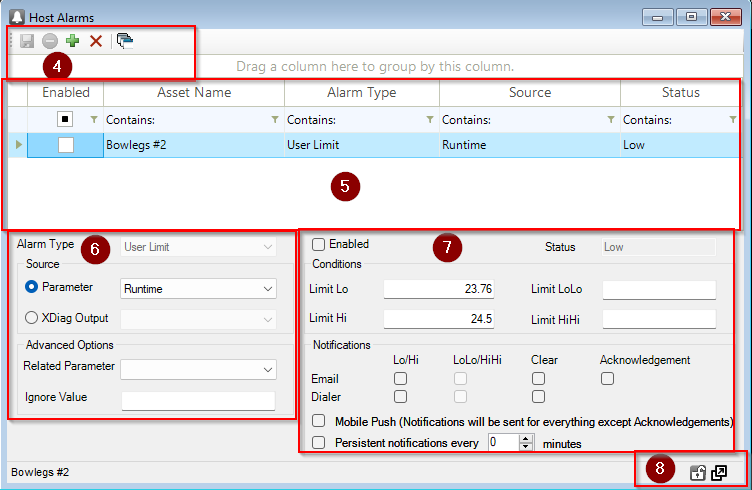
Table of Contents