
How can we help?
-
Asset
-
-
- Articles coming soon
-
- Articles coming soon
-
Facilities
-
Failures
-
- Articles coming soon
-
-
Group
-
Help
-
- Articles coming soon
-
- Articles coming soon
-
- Articles coming soon
-
- Articles coming soon
- Articles coming soon
-
-
Main Client Window
-
- Articles coming soon
-
- Articles coming soon
-
- Articles coming soon
-
- Articles coming soon
-
-
Scoreboard
-
- Articles coming soon
-
- Articles coming soon
-
- Articles coming soon
-
- Articles coming soon
-
-
Tools
-
-
- Articles coming soon
-
-
Window
-
- Articles coming soon
-
- Articles coming soon
-
- Articles coming soon
- Articles coming soon
-
Data View Screen
Posted
Updated
ByTheta Team
Print Objective:
Explain what a user is seeing on the Data View Screen.
Rights Needed:
☐Admin ☐ Admin Lite ☐Well Admin ☐Well Control
☐Well Config ☐Well Config Lite ☒Read Only
Versions:
XSPOC: 3.1, 3.2
Purpose:
Designed to give the user access to various SQL queries presenting data.
Instruction:

- Open XPOC Client
- From the navigation panel locate and select the asset
- Click Asset Tab > Data View Icon
- The Data View icon has a pick list of available SQL views that have been created to view in the XSPOC client.
- Select the view that you want to see, and it will display in the child window of the XSPOC client.
- Data Views are an easy way to use custom SQL scripts to view data.
- On the bottom right there are two window control icons.
- The lock icon allows the user to lock the screen,
- The arrow icon allows the use to float the window and move it to other screens or areas of the same computer screen.
- Here is a link to a KB Article at www.ThetaPortal.com explaining how to create a Data View.
https://thetaportal.com/knowledge-base/data-views/
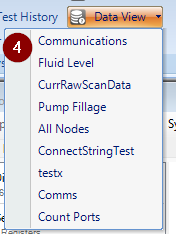
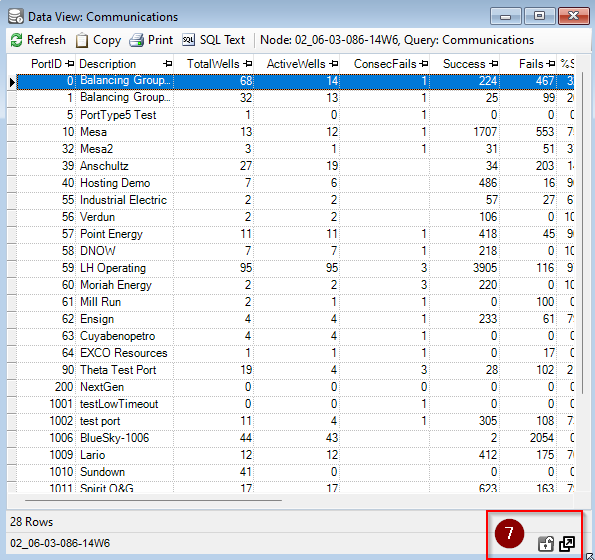
Table of Contents