
How can we help?
-
Asset
-
-
- Articles coming soon
-
- Articles coming soon
-
Facilities
-
Failures
-
- Articles coming soon
-
-
Group
-
Help
-
- Articles coming soon
-
- Articles coming soon
-
- Articles coming soon
-
- Articles coming soon
- Articles coming soon
-
-
Main Client Window
-
- Articles coming soon
-
- Articles coming soon
-
- Articles coming soon
-
- Articles coming soon
-
-
Scoreboard
-
- Articles coming soon
-
- Articles coming soon
-
- Articles coming soon
-
- Articles coming soon
-
-
Tools
-
-
- Articles coming soon
-
-
Window
-
- Articles coming soon
-
- Articles coming soon
-
- Articles coming soon
- Articles coming soon
-
Well Test History Screen
Posted
Updated
ByTheta Team
Print Objective:
Explain what a user is seeing on the Well Test History Screen
Rights Needed:
☐Admin ☐ Admin Lite ☐Well Admin ☐Well Control
☐Well Config ☐Well Config Lite ☒Read Only
Versions:
XSPOC: 3.1, 3.2
Purpose:
The Well Test History screen allows users to manually enter production data into XSPOC and displays well test data automatically imported to XSPOC via data integration imports. This data is used by XSPOC to calculate Pump Efficiency on Rod Pump Controllers and Pump Performance on ESPs. This data is also viewable in History Graph.
Instruction:

- Open XPOC Client
- From the navigation panel locate and select the asset
- Click Asset Tab > Status Well Test History Icon
- Along the top of the screen:
- Columns – allows the user to select what columns you want to see data for.
- Range – allows the user to select the range of well test that will display below.
- Refresh – will update the data in the window.
- Add New – allows the user to manually add new well tests.
- The data is displayed in the center of the screen.
- Along the bottom of the screen:
- Approved by Date – allows the user to approve the well test highlighted above.
- Approve by Selection – allows the user to approve all the well tests that have the Approved checkbox marked in the center window.
- Well Test must be approved to be used and displayed in other XSPOC screens.
- On the bottom right there are two window control icons.
- The lock icon allows the user to lock the screen,
- The arrow icon allows the use to float the window and move it to other screens or areas of the same computer screen.
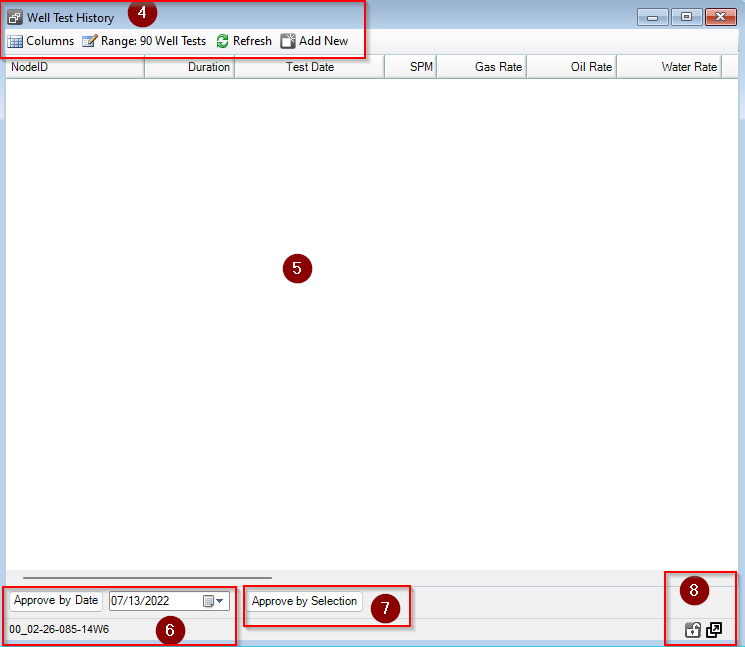
Table of Contents