
How can we help?
-
Asset
-
-
- Articles coming soon
-
- Articles coming soon
-
Facilities
-
Failures
-
- Articles coming soon
-
-
Group
-
Help
-
- Articles coming soon
-
- Articles coming soon
-
- Articles coming soon
-
- Articles coming soon
- Articles coming soon
-
-
Main Client Window
-
- Articles coming soon
-
- Articles coming soon
-
- Articles coming soon
-
- Articles coming soon
-
-
Scoreboard
-
- Articles coming soon
-
- Articles coming soon
-
- Articles coming soon
-
- Articles coming soon
-
-
Tools
-
-
- Articles coming soon
-
-
Window
-
- Articles coming soon
-
- Articles coming soon
-
- Articles coming soon
- Articles coming soon
-
Tools Group Builder Screen
Posted
Updated
ByTheta Team
Print Objective:
Explain what a user is seeing on the Group Builder Screen.
Rights Needed:
☐Admin ☒ Admin Lite ☐Well Admin ☐Well Control
☐Well Config ☐Well Config Lite ☐Read Only
Versions:
XSPOC: 3.1, 3.2
Purpose:
The Group Builder window allows the user to edit current groups and to define new well groups that display in the Well Group Explorer.
Instruction:

- Open the XPOC Client
- From the navigation panel locate and select the Tools Tab
- Click Tools Tab > Group Builder Icon
- The Group Builder window opens
- When the Group Builder window is displayed it already has the query of the selected group displayed.
- You can change this query and save it to modify the currently selected group or change the Group Name and Save it to create a new well group
- Group Builder Top Toolbar
- New Group Icon
- Save Icon
- Delete Icon
- Group Name
- Parent
- Type
- Filter Group
- Hidden
- Operational Score Deduction
- Exception Alarm Checkbox
- Priority
- Filter Section
- Left side tool bar:
- Execute SQL Statement Exclamation Point
- Erase SQL Statement Icon
- Undo Icon
- Redo Icon
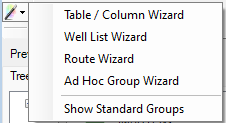
- Group Wizards – selecting a wizard opens a SQL query box with pre-formatted statements and access to dropdown lists of possible variables
- Table/Column Wizard
- Well List Wizard
- Roue Wizard
- Ad Hoc Group Wizard
- Show Standard Groups
- Left side tool bar:
-
- Center Section – where the SQL statement is built
- Preview Section
- Tree View – displays the SQL query results along with the hierarchy of the group.
- Data View – list the NodeID’s the query selects
- On the bottom right there are two window control icons.
- The lock icon allows the user to lock the screen
- The arrow icon allows the use to float the window and move it to other screens or areas of the same computer screen.
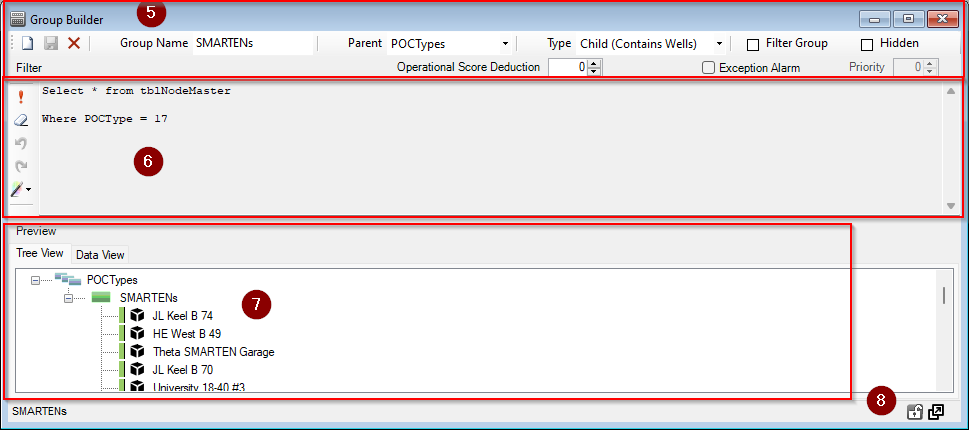
Table of Contents