How can we help?
Notes Screen
Objective:
Explain what a user is seeing on the Notes Screen.
Rights Needed:
☐Admin ☐ Admin Lite ☐Well Admin ☐Well Control
☐Well Config ☐Well Config Lite ☒Read Only
Versions:
XSPOC: 3.1, 3.2
Purpose:
Designed to give the user access to displayed User and System events recorded about the selected well.
Instruction:

- Open XPOC Client
- From the navigation panel locate and select Asset
- Click Asset Tab > Notes Icon
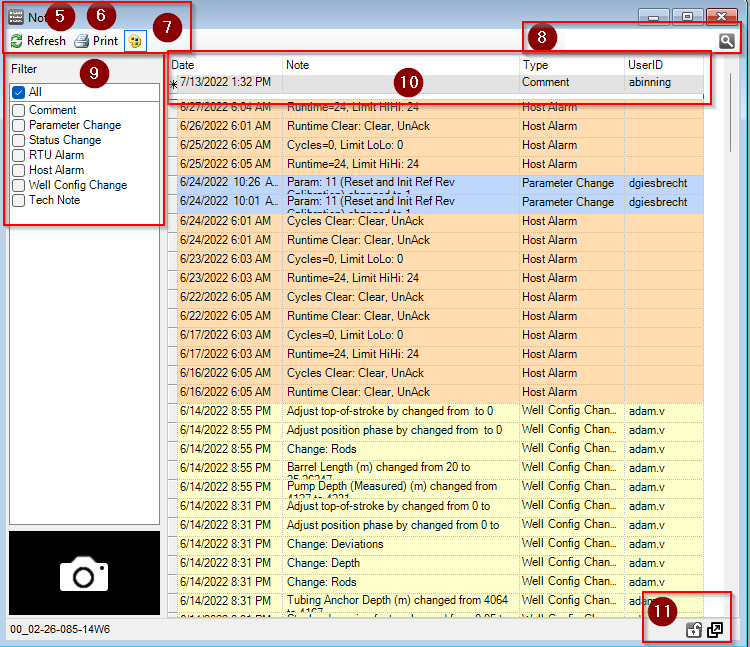
- The Well Notes window displays User and System historical events about the selected well.
- The Refresh icon updates the data on the screen.
- The Print icon allows the user to print the screen.
- The Color Palate Icon adds and remove color coding on the notes in the child window.
- The Search row at the top right allows the user to filter the data displayed.
- The notes are grouped by main event types as they are created by the User or by the System. Some examples are listed below:
- All – Includes all event types.
- Comment – A user-entered notes from the Comment column in Group Status or in Well Notes.
- Param Change – A note describing a parameter/setpoint change in the POC.
- Status Change – A note describing a change in the well’s status.
- RTU Alarm – violations caught by the controller based on preset limits.
- Host Alarm – violations caught by XSPOC based on preset limits.
- Dyno Note – notes entered by users in the Card Viewer window.
- Well Config Change – A note that reflects changes in the Well Config window.
- The function of each column is:
- Date: The date/time the event was created.
- Note: Information of interest to a particular well.
- Type: Category to which this note applies.
- UserID: The user who entered the note. The UserID information cannot be changed.
- On the bottom right there are two window control icons.
- The lock icon allows the user to lock the screen,
- The arrow icon allows the use to float the window and move it to other screens or areas of the same computer screen.