
How can we help?
-
Asset
-
-
- Articles coming soon
-
- Articles coming soon
-
Facilities
-
Failures
-
- Articles coming soon
-
-
Group
-
Help
-
- Articles coming soon
-
- Articles coming soon
-
- Articles coming soon
-
- Articles coming soon
- Articles coming soon
-
-
Main Client Window
-
- Articles coming soon
-
- Articles coming soon
-
- Articles coming soon
-
- Articles coming soon
-
-
Scoreboard
-
- Articles coming soon
-
- Articles coming soon
-
- Articles coming soon
-
- Articles coming soon
-
-
Tools
-
-
- Articles coming soon
-
-
Window
-
- Articles coming soon
-
- Articles coming soon
-
- Articles coming soon
- Articles coming soon
-
Group Alarm History Screen
Posted
Updated
ByTheta Team
Print Objective:
Explain what a user is seeing on the Group Alarm History Screen.
Rights Needed:
☐Admin ☐ Admin Lite ☐Well Admin ☐Well Control
☐Well Config ☐Well Config Lite ☒Read Only
Versions:
XSPOC: 3.1, 3.2
Purpose:
Designed to give the user a record of the various types of alarms for the selected group.
Instruction:

- Open the XPOC Client
- From the navigation panel locate and select the Group Tab
- Click Group Tab > Alarm History Icon
- On the top left of the screen – Refresh updates the Screen
- History drop-down pick list allows the user to select 1 Hour, 1 Week, 1Day, or 1Year of alarm history to view.
- The User can Drag a column header to group by a specific column.
- On the top right of the screen check the Refresh interval (minutes) box and enter the number of minutes desired and the screen will automatically refresh at that interval.
- The list of alarms is visible by Week, Date, Source of the Alarm and Description.
- The Description column records the type of alarm along with when it sets and clears.
- The legend at the bottom displays that an Alarm Set appears in red and that an Alarm Clear displays in blue.
- Status Button
- On the bottom right there are two window control icons.
- The lock icon allows the user to lock the screen.
- The arrow icon allows the use to float the window and move it to other screens or areas of the same computer screen.
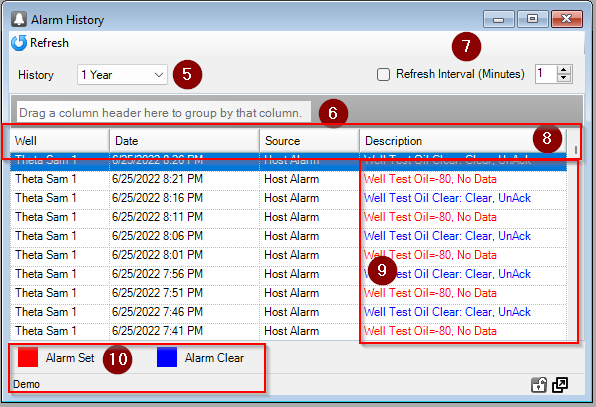
Table of Contents