
How can we help?
-
Asset
-
-
- Articles coming soon
-
- Articles coming soon
-
Facilities
-
Failures
-
- Articles coming soon
-
-
Group
-
Help
-
- Articles coming soon
-
- Articles coming soon
-
- Articles coming soon
-
- Articles coming soon
- Articles coming soon
-
-
Main Client Window
-
- Articles coming soon
-
- Articles coming soon
-
- Articles coming soon
-
- Articles coming soon
-
-
Scoreboard
-
- Articles coming soon
-
- Articles coming soon
-
- Articles coming soon
-
- Articles coming soon
-
-
Tools
-
-
- Articles coming soon
-
-
Window
-
- Articles coming soon
-
- Articles coming soon
-
- Articles coming soon
- Articles coming soon
-
Log File Screen
Posted
Updated
ByTheta Team
Print Objective:
To explain what users see using Tools>Log File.
Rights Needed:
☐Admin ☐ Admin Lite ☐Well Admin ☐Well Control
☐Well Config ☐Well Config Lite ☒Read Only
Versions:
XSPOC: 3.1, 3.2
Purpose:
Familiarize users with the Tools>Log File.
Instruction:

- Open the XPOC Client
- From the navigation panel locate and select the Tools Tab
- Click Tools Tab > Log File>View
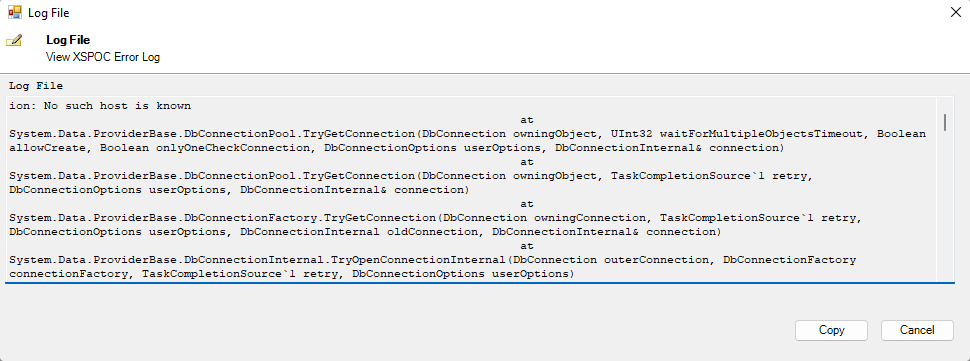
- The client log file opens with information according to the Log Verbosity setting using the Tools>Log Verbosity settings configuration.
- The user can Copy or Cancel the file once finished looking at it.
- The Log File is stored on the client’s computer in a text document. Clicking on the View option in this dropdown opens a form that displays the most recent records from this file. Because this file can get quite large, the user is presented with several size options in this dropdown as well. The default setting is usually sufficient because the user is typically looking for only the most recent information and this will be included in all three size settings.
- Size – Low – to display a small amount of data
- Size – Medium
- Size – High – to display as much data as possible
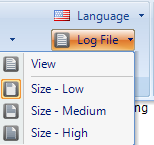
Table of Contents