
How can we help?
-
Asset
-
-
- Articles coming soon
-
- Articles coming soon
-
Facilities
-
Failures
-
- Articles coming soon
-
-
Group
-
Help
-
- Articles coming soon
-
- Articles coming soon
-
- Articles coming soon
-
- Articles coming soon
- Articles coming soon
-
-
Main Client Window
-
- Articles coming soon
-
- Articles coming soon
-
- Articles coming soon
-
- Articles coming soon
-
-
Scoreboard
-
- Articles coming soon
-
- Articles coming soon
-
- Articles coming soon
-
- Articles coming soon
-
-
Tools
-
-
- Articles coming soon
-
-
Window
-
- Articles coming soon
-
- Articles coming soon
-
- Articles coming soon
- Articles coming soon
-
Set Admin Message Screen
Posted
Updated
ByTheta Team
Print Objective:
Explain what a user is seeing on the Set Admin Message Screen.
Rights Needed:
☒Admin ☐ Admin Lite ☐Well Admin ☐Well Control
☐Well Config ☐Well Config Lite ☐Read Only
Versions:
XSPOC: 3.1, 3.2
Purpose:
Familiarize the user with the Set Admin Message Screen.
Instruction:

- Open XPOC Client
- From the navigation panel locate and select the Tools Tab
- Click Tools Tab > Set Admin Message Icon
- The Set Admin Message box opens and contains the following:
- A box where you can type in a message that you want to display on the bottom right of the XSPOC client screen for all users.
- Update button – saves the message
- Delete – deletes the message
- Cancel – cancels and changes made and reverts to the previous message if there is one.
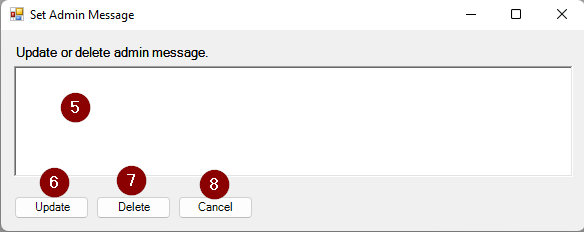
Table of Contents